⚠️ IMPORTANT: Understanding Protection Scope
What CellEncrypt Protects:
- ✓ Hides content from VIEWERS (read-only access)
- ✓ Protects exported/downloaded spreadsheet copies
- ✓ Secures current cell values in screenshots
Critical Limitation:
- ⚠️ Users with EDITOR access can ALWAYS view edit history
- ⚠️ Original unencrypted values visible in version history
- ⚠️ Only grant editor access to fully trusted users
- ⚠️ Only the spreadsheet OWNER can encrypt/decrypt cells
Recommendation: Use CellEncrypt for viewer privacy. This is protection designed for controlling who can see data in VIEW mode, not for securing data from editors.
Key Security Features
🔐
Password-Based Encryption
PBKDF2 key derivation with 10,000 rounds ensures strong password-based protection. No stored keys - only you know the password.
🆔
Cell-Specific Keys
Each cell gets a unique encryption key derived from your password plus a UUID. Same password, different keys per cell.
✓
HMAC Integrity Verification
Every encrypted cell includes an HMAC signature to detect tampering or incorrect passwords during decryption.
⏱️
Session Password Caching
Enter your password once and work for 6 hours. Cache automatically expires, or manually end session anytime.
📦
Batch Processing
Encrypt or decrypt up to 50 cells at once with progress tracking. Optimized for performance with large selections.
🧹
Orphan Data Cleanup
Built-in cleanup tool removes encrypted data for deleted cells, keeping your storage efficient and organized.
How CellEncrypt Works
Installation
- Open your Google Sheets™ document
- Navigate to Extensions → Add-ons → Get add-ons
- Search for "CellEncrypt"
- Click Install and authorize the required permissions
- Refresh your spreadsheet to see the CellEncrypt menu
🌐 View on Google Workspace Marketplace
Or visit directly:
https://workspace.google.com/marketplace/app/cellencrypt/933661203390
Encrypting Cells (Owner Only)
- Select the cells containing sensitive data
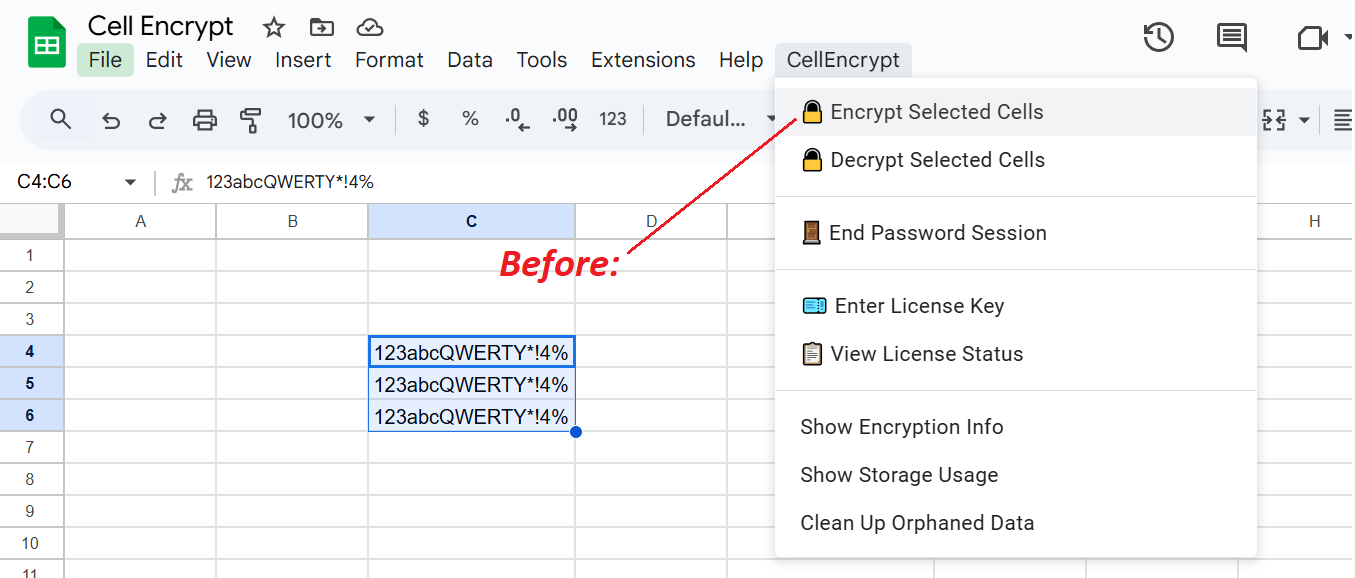
- Click CellEncrypt → 🔒 Encrypt Selected Cells
- Read and accept the editor limitation warning (first-time only)
- Enter your encryption password (minimum 8 characters recommended)
- Password is cached for 6 hours for convenience
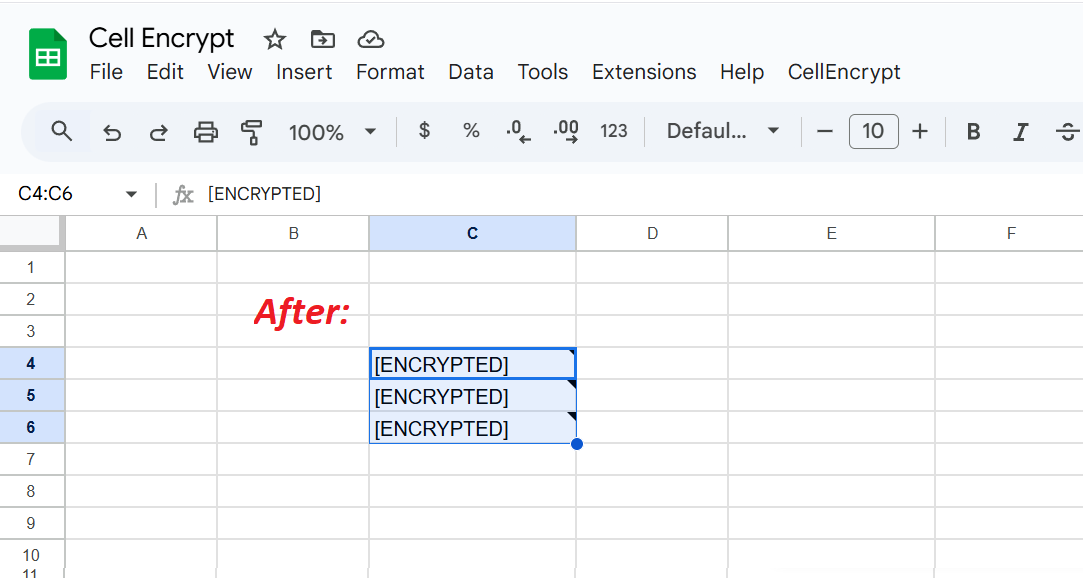
- Cells will display
[ENCRYPTED] - original data stored securely
Decrypting Cells (Owner Only)
- Select cells showing
[ENCRYPTED]
- Click CellEncrypt → 🔓 Decrypt Selected Cells
- If password cached, it's used automatically (or enter manually)
- Original cell values will be restored
- Encrypted data removed from storage automatically
🔑 Password Management
Critical: Your password is NOT stored permanently. If you forget your password, you can only recover clear text from change history.
Password Session Features:
- Password cached for 6 HOURS after first entry
- No need to re-enter during active session
- Use 🚪 End Password Session to logout manually
- Session expires automatically after 6 hours
Tips:
- Use a strong, memorable password (8+ characters recommended)
- Store your password securely (password manager)
- Only spreadsheet owner can encrypt/decrypt cells
Storage & Account Limits
| Feature |
Free Account |
Premium Account |
| Storage Limit |
5 KB |
500 KB |
| Estimated Cells |
~100-200 cells |
~10,000-20,000 cells |
| Password Sessions |
✓ 6 hours |
✓ 6 hours |
| Batch Processing |
✓ 50 cells/batch |
✓ 50 cells/batch |
| Cleanup Tools |
✓ |
✓ |
| License Duration |
- |
1 Year |
| Support Cost |
Free |
just $5 USD (1 Year) |
☕ Upgrade to Premium Account
Get premium features for just $5 USD and enjoy full access with a 1-year license!
How it works:
1. Pay $5 using your Google email
2. Wait 2-5 minutes for webhook processing
3. Get your license from bmc.numbrate.com with your email (the one used for Add-on)
4. Activate in CellEncrypt → 💳 Enter License Key
5. Enjoy premium features!
Note: Storage is calculated based on encrypted data size. Actual cell count varies by content length. Use CellEncrypt → Show Storage Usage to monitor your usage. Premium status is verified through the webhook API connected to Buy Me a Coffee.
Technical Security Details
Encryption Implementation
Key Derivation
Algorithm: PBKDF2-like with SHA-256
Rounds: 10,000 iterations (master) + 100 (per-cell)
Salt: Unique per spreadsheet
Cell Keys: Master key + UUID per cell
Encryption Method
Cipher: Block-based stream cipher
IV: Random 16-byte initialization vector
Block Size: 32 bytes (SHA-256)
Format: V3:IV:Encrypted|HMAC|Signature
Data Integrity
Method: HMAC-SHA256
Verification: Constant-time comparison
Tampering: Detected before decryption
Version: V3 protocol identifier
Data Storage
Encrypted data is stored in Google Apps Script Properties (inaccessible to viewers). Cell metadata uses zero-width space prefixes to hide UUIDs in cell notes. All storage is within Google's infrastructure - no external servers.
Session Security
Password cached in CacheService (user-specific, 6-hour expiration). Session keys cleared after each operation. No persistent storage of passwords or derived keys. Only spreadsheet owner can perform encryption/decryption operations.
Frequently Asked Questions
How do I upgrade to Premium status?
Visit
buymeacoffee.com/numbrate or
Gumroad and purchase for just $5 USD.
Important: Use the same email address that you use with Google Sheets. After 2-5 minutes, retrieve your license key from
bmc.numbrate.com and activate it in
CellEncrypt → 💳 Enter License Key. Your storage will increase from 5 KB to 500 KB for 1 year.
Can editors see my encrypted data?
Editors can see the current encrypted state (cells show [ENCRYPTED]), but NOT the original content - unless they check edit history. Important: Google Sheets version history will show all previous values including unencrypted data. Only share editor access with fully trusted users.
What happens if I forget my password?
Encrypted data can be only recovered from history without the correct password. CellEncrypt uses password-based encryption with no backup recovery mechanism. Always store your password securely in a password manager.
How long does the password session last?
Password sessions last 6 hours from the time you enter your password. During this time, you can encrypt/decrypt without re-entering the password. Use CellEncrypt → End Password Session to manually clear the cache earlier.
Is encrypted data stored on external servers?
No. All encrypted data is stored in Google Apps Script Properties within your spreadsheet. No data is transmitted to external servers. Everything stays within Google's infrastructure.
Can I encrypt cells with formulas?
CellEncrypt encrypts the current cell VALUE, not the formula. If you encrypt a cell containing a formula, the calculated result will be encrypted. When decrypted, you'll get the value back, not the original formula.
What happens to encrypted data when I delete a cell?
Deleting a cell leaves "orphaned" encrypted data in storage. Use CellEncrypt → Clean Up Orphaned Data to scan and remove encrypted data for deleted cells, freeing up storage space.
Can multiple users encrypt different cells with different passwords?
Only the spreadsheet owner (the person who first installed CellEncrypt) can encrypt/decrypt cells. This prevents conflicts and ensures consistent password management. Other users can view but not modify encrypted cells.
Does CellEncrypt work offline?
CellEncrypt requires an internet connection as it runs through Google Apps Script. All encryption/decryption happens server-side within Google's infrastructure for security and consistency.
How do I check my storage usage?
Click CellEncrypt → Show Storage Usage to see your current usage, percentage of limit, number of encrypted cells, and remaining space. You'll receive warnings when approaching 80% capacity.
Can I use different passwords for different cells?
Yes, Add-on does not store password anywhere centrally other then 6 hours temporary caching. So it is suggested to use same password always otherwise you should keep track of cell passwords with different UID's later to decrypt.
Professional Use Cases
HR & Payroll Data
Protect salary information, social security numbers, and performance reviews from viewers while maintaining spreadsheet collaboration with trusted HR staff.
Financial Planning
Secure account numbers, investment portfolios, and financial projections in shared planning spreadsheets with family or advisors.
Client Data Management
Encrypt client contact details, confidential notes, and pricing information in CRM spreadsheets shared with your team.
Research Data
Protect participant identifiers, survey responses, and confidential research data while collaborating with research teams.
Legal Documentation
Secure case details, client information, and settlement amounts in legal case management spreadsheets.
Healthcare Records
Protect patient identifiers, medical notes, and HIPAA-sensitive information in shared healthcare administration spreadsheets.
CellEncrypt: Professional Google Sheets Cell Encryption Add-on
CellEncrypt is a professional password-based encryption add-on for Google Sheets that provides cell-level data protection using PBKDF2 encryption with HMAC integrity verification. This Google Workspace Marketplace add-on allows spreadsheet owners to encrypt sensitive cells with password protection, preventing viewers from accessing confidential information while maintaining collaboration capabilities.
Key Features and Capabilities
Password-based encryption using PBKDF2 algorithm with 10,000 iteration rounds for strong cryptographic security. Each cell receives unique encryption keys derived from user password combined with UUID identifiers. HMAC-SHA256 integrity verification ensures data tampering detection. Six-hour session caching eliminates repeated password entry. Batch processing supports encrypting up to 50 cells simultaneously with progress tracking. Orphan data cleanup tools maintain efficient storage management.
Security Implementation
CellEncrypt implements military-grade encryption for Google Sheets using PBKDF2 key derivation with SHA-256 hashing. Block-based stream cipher with random 16-byte initialization vectors. Constant-time HMAC comparison prevents timing attacks. Zero-width space prefixes hide cell metadata. All encrypted data stored in Google Apps Script Properties within Google infrastructure. No external servers involved ensuring complete data sovereignty.
Use Cases and Applications
Ideal for HR payroll data protection including salary information and social security numbers. Financial planning with encrypted account numbers and investment portfolios. Client relationship management with confidential contact details and pricing. Research data protection for participant identifiers and survey responses. Legal documentation security for case details and settlement amounts. Healthcare records protection for HIPAA-compliant patient identifiers and medical notes.
Storage and Licensing
Free accounts include 5 KB storage supporting approximately 100-200 encrypted cells. Premium accounts offer 500 KB storage for 10,000-20,000 cells with one-year license duration. Upgrade for $5 USD through Buy Me a Coffee or Gumroad integration. Webhook API verification system for automatic license activation within 2-5 minutes.
Technical Specifications
V3 encryption protocol with format V3:IV:Encrypted|HMAC|Signature. Master key derivation with 10,000 iterations plus 100 iterations per cell. Unique salt per spreadsheet. Random initialization vectors for each encryption operation. Server-side processing through Google Apps Script requiring internet connection. Owner-only encryption permissions preventing unauthorized access.
Privacy and Security Considerations
CellEncrypt protects data from viewers and read-only users. Editor access limitations: users with editor permissions can view version history containing unencrypted values. Only grant editor access to fully trusted users. Spreadsheet owner exclusively controls encryption and decryption operations. No password recovery mechanism available - forgotten passwords require history restoration. Session security with user-specific cache expiration after six hours.
Installation and Setup
Available on Google Workspace Marketplace. Installation through Extensions menu in Google Sheets. Requires authorization for Google Apps Script Properties access. Automatic menu integration after installation. First-time setup includes editor limitation warning acceptance. Minimum recommended password length of 8 characters for optimal security.
Common Questions and Answers
How does CellEncrypt differ from sheet-level protection? CellEncrypt provides cryptographic encryption at cell level versus access control permissions. Can multiple users encrypt with different passwords? Only spreadsheet owner can encrypt decrypt ensuring consistent password management. Does encryption work with formulas? Encrypts calculated values not formula expressions. What happens when cells are deleted? Orphaned encrypted data remains until cleanup tool execution. Is offline usage supported? Requires internet connection for server-side Google Apps Script execution.
Compatibility and Integration
Compatible with all Google Sheets spreadsheets in Google Workspace and personal Google accounts. Works with desktop browsers including Chrome Firefox Safari Edge. Mobile app support through Google Sheets mobile applications. Integration with Google Drive file sharing permissions. Maintains compatibility with Google Sheets native features like filtering sorting and conditional formatting on encrypted cells showing [ENCRYPTED] placeholder text.
Performance and Optimization
Optimized batch processing for selections up to 50 cells with progress indicators. Efficient storage calculation based on encrypted data size. Real-time storage usage monitoring through Show Storage Usage feature. Automatic warning notifications at 80% capacity threshold. Session-based password caching reduces cryptographic operation overhead during active usage periods.
Support and Documentation
Technical support available through numbrate@gmail.com email. Comprehensive documentation covering installation encryption decryption procedures. FAQ section addressing common use cases and troubleshooting. Premium support included with paid license upgrades. Regular updates and security patches through Google Workspace Marketplace automatic distribution.
 CellEncrypt